
Meal planning
How to Meal Plan With ChatGPT, Claude or Gemini: Prompts and a Shopping List
Prompts that get a week of dinners and one checked shopping list out of any AI assistant, what to double-check, and how connecting RecipeRun keeps the plan and the list in an app you shop from.
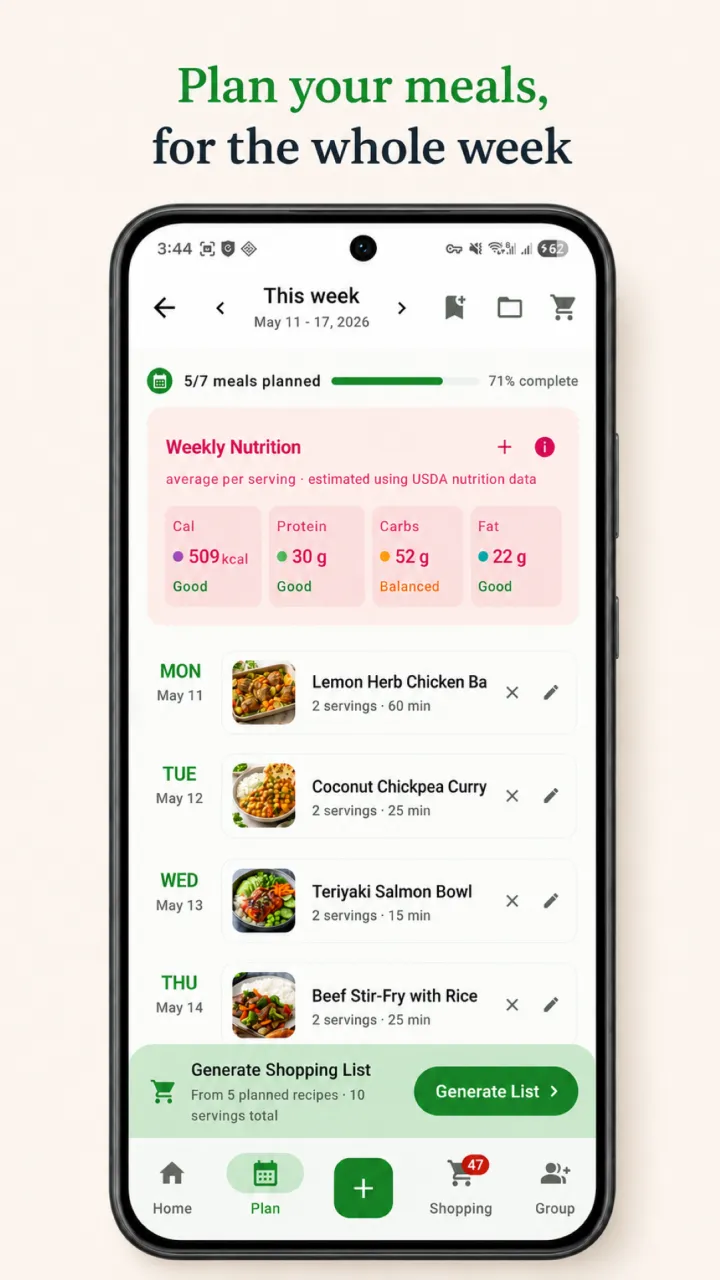
Quick answer: Start by telling the assistant about your week: who's eating, how much time you have each night and anything you need to avoid. Ask for the dinners on their own and swap what doesn't fit. Then ask for one shopping list in a separate message, with repeated ingredients combined and a check against every recipe. Copy-ready prompts for each step are below. The weak spot is what comes after. A chat doesn't keep the recipes your household actually cooks, and the list is text you still have to copy somewhere you can shop from. Connect ChatGPT, Claude or Gemini to RecipeRun and the assistant plans from your saved recipes, puts the dinners on your weekly plan and builds the shopping list in the app, ready to tick off at the supermarket. Each assistant has its own limits on who can connect, listed below.
Chat only, or connected to your recipes
Swipe horizontally to compare
| Prompts in a chat | Assistant connected to RecipeRun | |
|---|---|---|
| Recipes it plans from | Ones it suggests or you paste in | The recipes you've saved |
| Where the plan ends up | In the chat | On your weekly plan in the app |
| The shopping list | Text you copy out | A list in the app you tick off as you shop |
| Sharing | Send someone a copy | Your Family Group shares the plan and list |
| Setup | None | Turn on AI access, then add RecipeRun to the assistant |
What an AI assistant does well, and what it gets wrong
An assistant is good at the part of meal planning that takes willpower: finding five dinners that fit a busy Tuesday, a vegetarian teenager and the chicken that needs using up. It can swap a meal in seconds, scale a recipe for six or suggest something for leftover rice.
It's weaker wherever you need a record. It doesn't know which dinners your family actually likes unless you tell it each time. It will write recipes nobody has cooked. Its shopping lists can leave out an ingredient or get an amount wrong. It doesn't know this week's prices at your Woolworths, Coles or ALDI. And when you're done, the plan and the list are text in a chat, not something you can tick off at the supermarket or share with whoever does the shopping.
Plan the week with prompts
These work in ChatGPT, Claude, Gemini or any other assistant, on any plan, with no setup. Change the parts in brackets.
1. Describe the week, then ask for the dinners only
Prompt: "Plan dinners for Monday to Friday for [two adults and two kids, aged 8 and 11]. Monday and Thursday need to take 30 minutes or less. Make one night vegetarian. [No tree nuts: one of us is allergic.] Use up [a packet of chicken thighs and half a bag of baby spinach]. Give me the five dinners only, no recipes or shopping list yet."
Asking for the dinners on their own keeps the answer short enough to check. It's easier to change one night now than to fix the list later. Leave out a dollar budget, because the assistant's totals are guesses. Ask for cheap staples like beans, eggs and chicken thighs instead, and leave the prices to step 6.
2. Swap what doesn't fit
Prompt: "Swap Wednesday for something that uses the leftover rice from Tuesday, and make Friday something the kids can help cook."
3. Ask for real recipes, with links
Prompt: "For each dinner, find a recipe on a cooking website and give me the link."
A recipe that someone has published and cooked is a safer bet than one the assistant writes on the spot. Open each link before you rely on it, because assistants can get links wrong.
4. Ask for the shopping list in its own message
Prompt: "Now write one shopping list for all five dinners. Combine any ingredient that appears more than once into one line with the total amount. Group the list by supermarket aisle. Put pantry staples I probably have, like oil, salt and spices, in a separate 'check first' list."
5. Have it check its own list
Prompt: "Go back through each recipe and check that every ingredient is on the list with the right amount. Tell me what you changed."
This catches a lot, not everything. Read the list against the recipes yourself before you shop, and check allergens on the labels.
6. Move the list somewhere you can shop from
The finished list is text in a chat. You can paste it into a notes app, but you can't tick items off as you go, the person shopping won't see changes you make later, and next week starts from nothing.
In RecipeRun, paste each recipe's link and it saves the recipe with its ingredients; check what it imported before you plan. Give each recipe a day on your weekly plan, and its ingredients go into one shopping list, grouped by category, with repeated ingredients combined. For a recipe the assistant wrote itself, take a screenshot and import the screenshot. This works on iPhone and Android, with nothing to connect.
Then the prices: RecipeRun shows indicative prices for selected products on your list at the Woolworths, Coles and ALDI near your postcode, and its Cheapest mode splits the list by cheapest supermarket, if you don't mind the extra run. You can see how that looks on this week's seven-dinner basket, priced at all three.
Connect your assistant to RecipeRun
We make RecipeRun, so this part is about our own app.
Connecting skips the copying. Your assistant can read the recipes you've saved in RecipeRun, your weekly plan and your shopping list, and make the changes you ask for. They show up in the app on your phone, ready for the supermarket. While you're in a Family Group, it uses the family's shared shopping list and meal plan, and its changes show for everyone in the family.
What you can ask once it's connected
- "Plan next week's dinners from my recipes. Two vegetarian nights, and nothing over 30 minutes on Monday."
- "Swap Tuesday's recipe for something vegetarian from my recipes."
- "Make my shopping list from this week's plan."
- "Add milk and eggs to my shopping list."
- "I've bought the eggs, tick them off."
- "Save this recipe to RecipeRun," with a link, a photo or the recipe's text.
- "Here's a photo of my pantry. Add these to my shopping filters so my recipes don't put them on my list."
The assistant plans from recipes you've saved, so a new account starts with nothing to plan from. Save a few dinners you already cook first, or share the links from step 3 and ask the assistant to save them to RecipeRun.
How to connect
Our AI assistants page lists what you need and the steps for each assistant. In short:
- In the RecipeRun app on iPhone, iPad or Mac, open Settings → Account, sign in with Apple and turn on Allow AI access. The Android app can't turn on AI access yet.
- Still in Settings → Account, tap How to connect, then Copy message, and send the message to your assistant. It gives you the steps for that assistant. To add RecipeRun yourself, use the address https://mcp.reciperun.com.au/mcp.
- When the RecipeRun sign-in page opens, use the same Apple or Google account as in the app, read the terms and choose Accept and connect.
You can disconnect anytime in Settings → Account, or remove RecipeRun in your assistant's settings.
Which assistants can connect (November 2026)
- ChatGPT connects on the web. We've connected it on ChatGPT Plus and ChatGPT Pro, and OpenAI's help page lists its Business, Enterprise and Edu plans too. The prompts above work on every ChatGPT plan.
- Claude can connect on every Claude plan, and the Free plan allows one custom connector. Add RecipeRun on claude.ai or in Claude Desktop, and it works in Claude's mobile apps too. Our Claude meal planning guide has the steps.
- Gemini connects on the web at gemini.google.com, and then works in the Gemini mobile app too. Google's help page lists custom apps for adults in the US with a personal Google Account, but we've connected RecipeRun to Gemini from Australia. Our Gemini meal planning guide has the steps.
- Grok (on grok.com) connects too, and our Grok meal planning guide has the steps.
Before you connect
- Check what it changes. AI can make mistakes. Check important changes, especially ingredients, quantities and allergens.
- Know what's shared. Turning on AI access syncs your recipes, meal plans and shopping lists to your private RecipeRun cloud space, so your assistant can reach them. What your assistant reads goes to its provider, such as OpenAI, Anthropic or Google, under that provider's terms, which may involve processing outside Australia. Section 11 of our Privacy Policy has the details.
- Your password stays yours. You sign in to RecipeRun in your browser, so the assistant never gets your Apple or Google password.
- Android. The Android app can't turn on AI access yet. The prompts and pasted links above work on Android today. If someone in your Family Group connects an assistant on an iPhone, its changes show for everyone in the family.
Frequently asked questions
Can ChatGPT make a meal plan and a shopping list?
Yes. Ask for the dinners first, then for the shopping list in a separate message, with repeated ingredients combined and a check against each recipe. It can still miss an item or get an amount wrong, so read the list against the recipes before you shop.
Does ChatGPT remember my recipes?
Its memory can keep details like who you cook for or what you avoid, but it doesn't keep your recipe collection. Paste in the recipes you want it to use, or keep them in a recipe app your assistant can connect to, like RecipeRun.
Which AI assistants work with RecipeRun in Australia?
ChatGPT, Claude, Gemini and Grok can connect. Claude connects on any of its plans, ChatGPT on the web on Plus, Pro, Business, Enterprise and Edu, and Gemini on the web. Google's help page still lists Gemini's custom apps for the US, but we've connected it from Australia. Our AI assistants page has the steps.
Can I connect an AI assistant to RecipeRun on Android?
Not yet: the Android app can't turn on AI access. You can still plan with the prompts above and paste recipe links into RecipeRun on Android. If someone in your Family Group connects an assistant on an iPhone, its changes show for everyone in the family.
Is my recipe data shared with the AI company?
What your assistant reads from RecipeRun is shared with its provider, for example OpenAI for ChatGPT, Anthropic for Claude and Google for Gemini, under that provider's own terms, which may involve processing outside Australia. You can disconnect anytime in Settings → Account, and our Privacy Policy explains the rest in section 11.
Sources
- OpenAI Help Center: Connecting custom MCP servers in ChatGPT.
- Claude Help Center: Get started with custom connectors using remote MCP.
- Gemini Apps Help: Connect and manage custom apps for Gemini Apps.
- RecipeRun AI assistants, family meal planner and Privacy Policy.
ChatGPT, Claude, Gemini and Grok are trademarks of their owners. RecipeRun is not affiliated with or endorsed by OpenAI, Anthropic, Google or xAI.
Who wrote this, and how we checked
The RecipeRun team wrote this guide, and we benefit if you use RecipeRun. On 12 November 2026 we read OpenAI's, Anthropic's and Google's help pages on connecting outside apps to their assistants. Each assistant's limits above are what those pages said that day, except where we connected it ourselves: ChatGPT on Plus and Pro, and Gemini from Australia. The prompts are our own. Assistants change their plans and settings often, so if a step doesn't match what you see, check your assistant's help page.